

Download Papaya – free web server for Mac file sharing
Overview
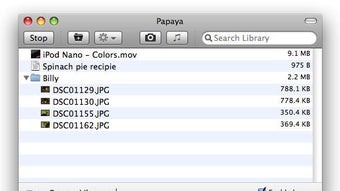
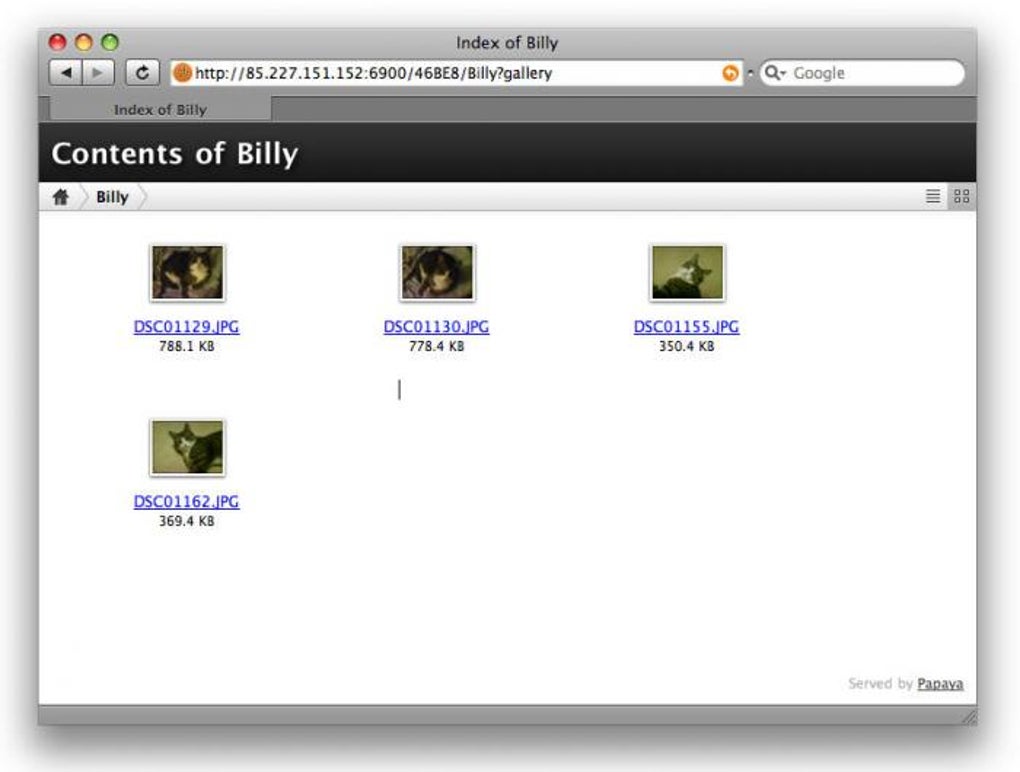
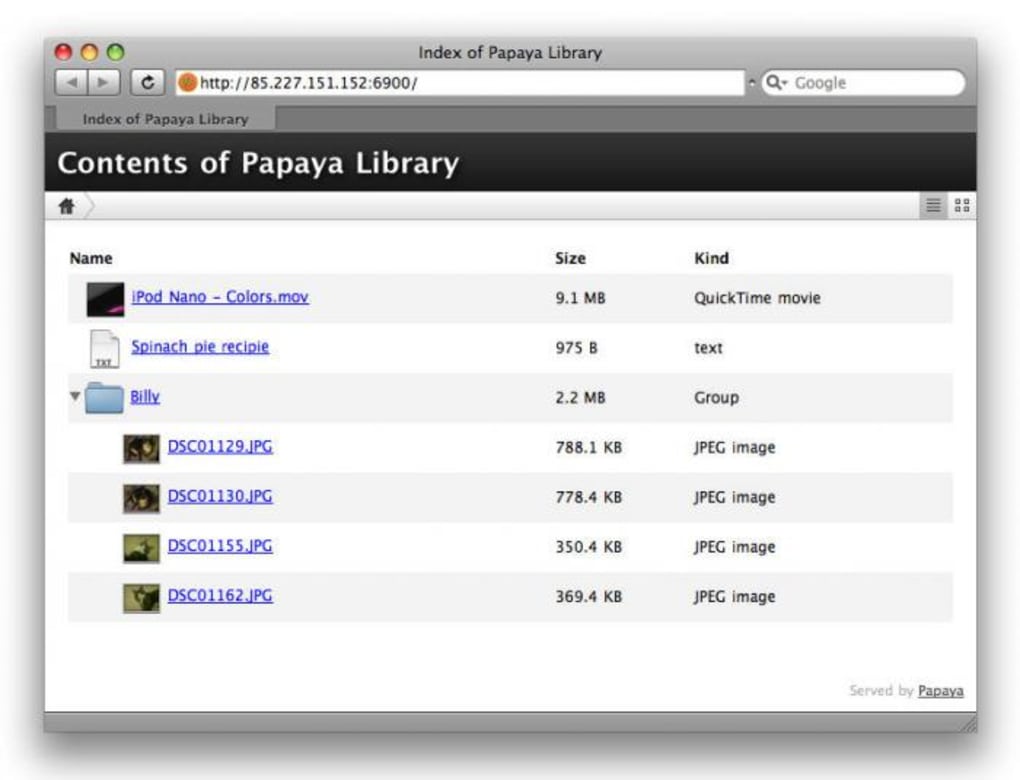
Papaya is a lightweight web‑server application built specifically for macOS that turns your computer into an instant file‑sharing hub. Unlike traditional FTP or cloud services, Papaya lets you drag and drop files onto its icon, instantly generating a public URL that can be opened in any browser. The interface feels native to macOS – it adopts Quick Look for previewing, integrates with iTunes to share the currently playing track, and even lets you snap pictures with the iSight camera. While the tool does not yet offer multiple encryption options, it does provide a simple password gate to keep casual browsers out. The lack of size limits and the fact that files are served directly over HTTP make Papaya an attractive solution for designers, developers, and anyone who needs to share large assets without the hassle of uploading to third‑party services.
What sets Papaya apart is its seamless use of macOS features. The “find‑as‑you‑type” search box instantly filters files, folders can be created on the fly, and the bottom‑bar URL updates in real time, allowing you to verify the link before you send it. This tight integration reduces the learning curve and speeds up everyday workflows. Whether you’re a photographer needing to deliver high‑resolution images, a music producer sharing mixes, or a developer distributing build artifacts, Papaya provides a secure, fast, and style‑focused way to get your content onto the web.
In addition to core sharing capabilities, Papaya’s design philosophy emphasizes simplicity. No complex configuration files, no command‑line arguments – just a clean window where you can drop files, set a password, and click “Start Server.” The application runs in the background, keeping your shared files accessible as long as you need them, and shuts down cleanly when you’re done. For Mac users who value native UI and quick access, Papaya is a compelling addition to the toolbox.
Key Features & Compatibility
- Drag‑and‑drop file sharing with instant public URL generation.
- Native macOS Quick Look preview for instant file inspection.
- “Find as you type” search box for rapid file location.
- One‑click iTunes integration – share the currently playing track.
- iSight camera snapshot button for quick image captures.
- Password protection for shared folders (single encryption method).
- Automatic folder creation and organization within the app.
- Real‑time URL display for easy verification and copy‑paste.
- No file‑size limits – share large media or archives without compression.
- Lightweight background service that consumes minimal system resources.
Papaya is designed exclusively for macOS (10.12 Sierra and later). The application leverages the latest Cocoa frameworks, ensuring smooth performance on both Intel‑based Macs and Apple Silicon devices. Because it runs as a native app, there is no need for Java, .NET, or additional runtime environments, keeping the installation footprint small and the user experience consistent with other macOS utilities.
From a security standpoint, Papaya offers a single password protection layer that is applied to the entire server session. While this does not provide granular, per‑file encryption, it does prevent casual discovery of your shared content. Future updates are expected to introduce more robust encryption choices, but the current model is sufficient for most internal or short‑term sharing scenarios.
The application also respects macOS system preferences. It automatically registers the appropriate firewall exception when the server starts, and it can be configured to launch at login for users who need a permanent sharing endpoint. The combination of macOS‑specific features and a tiny resource footprint makes Papaya an excellent fit for creative professionals who need a reliable, always‑ready web server without the overhead of a full‑blown Apache or Nginx installation.
Installation, Usage, Pros & Cons, and Frequently Asked Questions
Installation & First‑Run Setup
Getting Papaya up and running is straightforward. Download the DMG file from the official website, open it, and drag the Papaya icon into your Applications folder. macOS may warn you about an unidentified developer; simply right‑click the app, choose “Open,” and confirm you want to run it. The first launch will prompt you to grant network access – accept the firewall exception to allow incoming HTTP requests.
After the initial setup, the main window appears with a large drop zone. Drag any file or folder onto the area, and Papaya instantly creates a public URL displayed at the bottom. If you wish to protect your files, click the lock icon, set a password, and the server will require that password before serving any content. The server can be started or stopped with a single button, and you can configure the listening port in the preferences panel if the default port 8080 conflicts with other services.
Pros
- Ultra‑simple drag‑and‑drop interface eliminates configuration headaches.
- Deep macOS integration (Quick Look, iTunes, iSight) enhances workflow efficiency.
- No file‑size limits – ideal for large media, archives, or development builds.
- Lightweight background service keeps CPU and RAM usage minimal.
- Instant URL generation with real‑time verification.
Cons
- Only a single password protection method; no per‑file encryption.
- Limited to macOS – no Windows or Linux version currently available.
- Advanced server settings (e.g., SSL, custom MIME types) are not exposed.
- No built‑in analytics or download tracking for shared files.
FAQ
Can I change the default port that Papaya uses?
Yes. Open the Preferences window, navigate to the Network tab, and enter a new port number. Remember to adjust any firewall rules accordingly.
Is the shared URL accessible from outside my local network?
By default, Papaya binds to all network interfaces, so the URL can be accessed from any device that can reach your Mac’s IP address. For remote access, ensure your router forwards the chosen port to your Mac.
Does Papaya support HTTPS?
Currently Papaya only serves content over HTTP. Future releases may add optional SSL support, but at the moment you would need a reverse proxy like Nginx to provide HTTPS.
Can I share files that are stored on an external drive?
Yes. Drag files or folders from any mounted volume into Papaya’s window. The server will serve them as long as the external drive remains connected.
How do I stop the server once I’m finished sharing?
Click the “Stop Server” button in the main window or quit the application entirely. The URL will no longer be reachable, and the password protection is cleared.
Review Summary
Rating: ★★★★☆ (4 out of 5)
Pros: Simple UI, native macOS features, unlimited file size, low resource usage.
Cons: Single password protection, no HTTPS, macOS‑only.
Conclusion & Call to Action
Papaya delivers a refreshingly simple way to turn your Mac into a powerful web‑server for instant file sharing. By harnessing native macOS technologies such as Quick Look, iSight, and iTunes, it creates a workflow that feels familiar and efficient for creative professionals. While the current password protection is basic and the lack of HTTPS may be a concern for highly sensitive data, the overall package is solid for everyday use, especially when you need to share large files without the constraints of cloud storage.
If you’re looking for a free, secure‑enough, and stylish solution to share files on the web directly from your Mac, Papaya is worth a download. Its minimal footprint means it won’t slow down your system, and the instant URL generation saves you precious time. Keep an eye on future updates for enhanced encryption and cross‑platform support, but for now, Papaya stands as a reliable, user‑friendly tool for macOS users.
Ready to try it out? Download Papaya now and start sharing your files with confidence and style.







